 Griphus 1.0
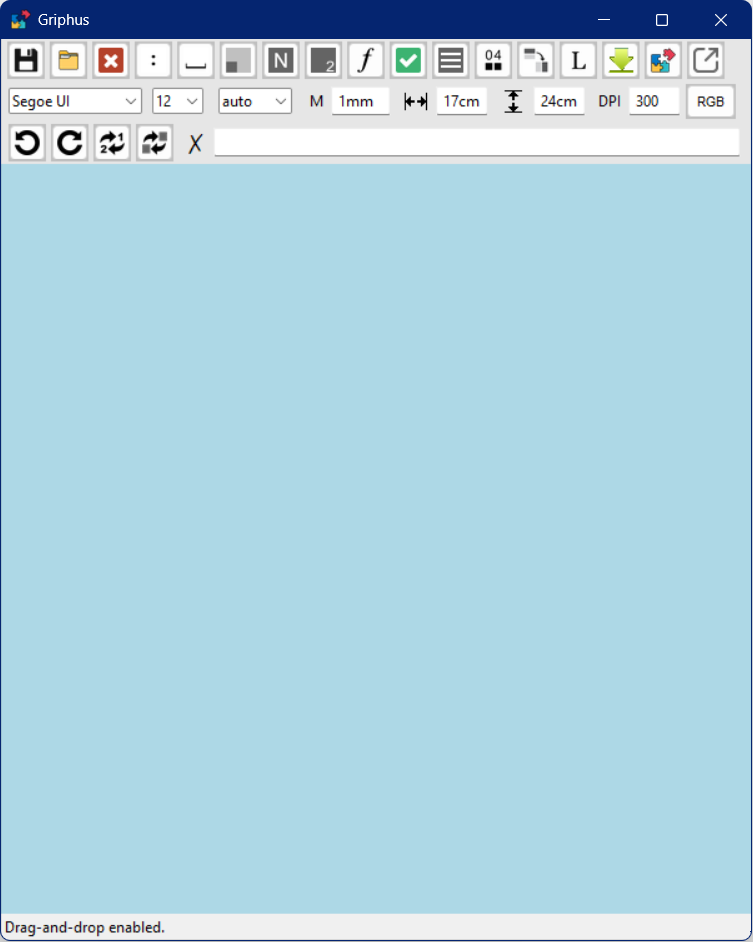
Griphus is designed as a tool for quickly assembling illustration plates for taxonomic work. Advanced image transformations, annotations, and detailed image editing should be performed using dedicated image editing software such as GIMP, Photopea, Pixlr or equivalent.
Important
- On the canvas, image numbers are displayed only as temporary, predefined, white-circle labels. Final, formatted numbering is applied only in the saved plate image.
- A separate, Number location button, sets the corner where image numbers will appear in the final image, or turns numbering off.
- An unfinished layout cannot be saved as is. When saving, the software first computes a best-fitting plate for the defined width and height, then saves the result.
- Spacers are neutral white images used to fill empty areas and control layout spacing. For example, two spacers can be used to center a image horizontally.
-
Main window and canvas
-
Main window
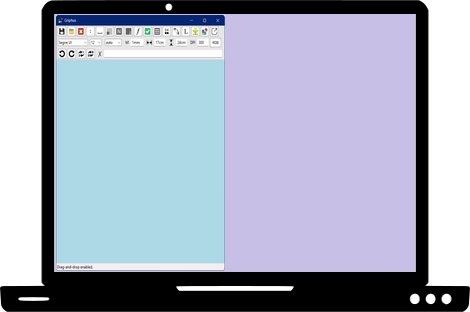
- opens near the top-left of the screen
- contains three toolbar rows, the main canvas, and a bottom status/messages bar
-
Canvas (light blue area)
- displays loaded images, temporary overlays, and plate previews
- shows hover outlines and selected-image feedback on images
- selected images keep the thin blue outline and also receive a subtle translucent glass-like highlight
- redraws an existing plate preview when the window/canvas is resized
-
Drag-and-drop
- dropping files onto the canvas loads them
-
Large first-load batches
- loading 30 or more images into an empty canvas shows a temporary progress bar
- staged messages include Loading images, Preprocessing, Computing layout, and Rendering
-
Status/messages bar (bottom)

- shows live messages such as drag-and-drop availability, selection, load, drag, transform, inset, layout rebuild, and save status
-
Main window
-
Top taskbar buttons

-
Save session
- saves the current session as a
.grifile - opens a save dialog
- saves the current session as a
-
Load
- loads supported image files or a single
.grisession file
- loads supported image files or a single
-
Load style
- starts at Rows and cycles Rows → Columns → Proportional → Instant plate; right or middle click cycles backward
- with an empty canvas: sets the style used for the next image load
- with images already on the canvas: reorganizes the existing images using the selected style
-
Clear session
- first click clears the canvas while preserving toolbar settings
- second consecutive click resets the toolbar to startup defaults
-
Show formula
- shows the current numbered formula; when a plate is already built, the built plate formula is used
- after image deletion, Griphus tries to preserve the surviving structure of the previous formula before using geometry inference
- writes the displayed formula into the command line
- copies the displayed formula to the clipboard
- shows a short "Formula copied" popup
-
Aspect ratio
- if numeric ratio
W:Hprovided in the command line: crops the selected or hovered image(s) to that ratio - if one image is selected and no ratio is provided: shows its current aspect ratio
- if multiple images are selected and no ratio is provided: crops them to the selected image ratio closest to 1:1
- if numeric ratio
-
Scale bar
- requires a command-line dimension in millimeters (e.g.,
5mm) - sets scale bar on all selected images (except spacers)
- when clicked, starts scale-bar mode:
- cursor changes to cross-shape
- click-drag on a selected image to calibrate
- click to change scale bar corner (skips number corner)
- if command line is empty or
0mm, removes existing scale bars from the selected images - the exported
_Figures_legends.txtappends respective scale-bar descriptions
- requires a command-line dimension in millimeters (e.g.,
-
Inset
- merges images that are fully contained inside larger images
- places the smaller image into a quadrant of the larger image
- fuses images, cannot be undone
-
Figs Legends
- cycles None → Concise → Full legends mode
- uses the current figure numbers and filenames
- Concise mode groups repeated leading words
- e.g.,
Head_frontal.png+Head_lateral.png→Figures 1-2. Head. 1, Frontal. 2, Lateral. - Full mode writes one sentence per figure
- if no numbers are available or numbers are disabled, legends state that figure numbers were not defined
- includes scale-bar description when scale bars are present
-
Numbers
- calculates and displays image numbering
- not applied for spacers
- uses temporary pre-formatted number labels on the canvas
- the button cycles three states:
- 1st click: row-based numbering, with the horizontal-numbering icon
- 2nd click: column-based numbering, with the vertical-numbering icon
- 3rd click: numbering hidden, with the neutral Numbers icon
- numbering can be adjusted by the swap command (
N,N) or by the Swap numbers button- e.g.,
2,7+ Enter → renumbers images to7,2
- e.g.,
-
Image number location
- sets number position to be used in the final image
- cycles lower-right → lower-left → upper-left → upper-right → no numbers
-
Build Plate
- builds or rebuilds the current plate preview on the canvas from the current or inferred formula
-
Rotate Plate
- rotates the current plate formula by +90 degrees per click and rebuilds the preview
- cumulative visible state cycles 90, 180, 270, 360, then 90 again
-
Imgs per line
- sets the maximum number of images per row or column, from 01 to 20
- works with Rows, Columns, and Proportional layouts
- left click increases the count; right or middle click decreases it
- rebuilds the current non-Instant plate with the selected count
- Instant plate ignores this control
-
Save Plate
- saves to the most recently used folder
- saves plate image as TIFF with lossless LZW compression
- saves as
_Plate.tif,_Plate(2).tif,_Plate(3).tif, etc - saves
Formula.txtin the same folder with the full and simplified formulas - saves
Figures_legends.txtif legends mode is Concise or Full
-
About
- shows program name, website link, citation text, Copy citation, and Close
-
Help
- opens this manual in a browser
-
Save session
-
Second-row controls

-
Font type dropdown
- chooses the font family used for final plate numbering
- detects and uses the above selected set of TTF fonts
-
Font size dropdown
- chooses the final plate numbering size
- Font color dropdown
- choices: auto / black / white
- auto chooses black or white from the local image background under the number
- fully transparent sampled background is treated as light, so auto uses black
- Margins (M)
- spacing between images
- strict input format:
<number><unit>with no spaces - supported units:
mm,cm,in
- Plate width, Plate height, DPI
- define dimensions and resolution used for plate building and export
- strict input format:
<number><unit>with no spaces - supported units:
mm,cm,in - values without unit are interpreted as centimeters
- examples accepted:
170mm,17cm,6.7in, and17
- RGB | RGBA | CMYK button
- cycles RGB → RGBA → CMYK → RGB
- affects the saved plate file color mode and file type
-
Font type dropdown
-
Third row and command line

-
Undo
- restores the previous workspace state when available
- covers canvas edits, transforms, selection-related changes, numbering, plate rebuilds, and session-level state changes made during the current session
-
Redo
- reapplies the next undone workspace state when available
-
Swap numbers
- requires at least two selected images
- rotates the visible/assigned numbers through the selected images in row-reading order
- does not move images or change their geometry
-
Swap images
- requires at least two selected images
- cycles the selected images through their selected positions and rebuilds the plate from the updated formula
- keeps numbering overlays synchronized after the swap
-
Clear-command button (✘)
- clears the command line
-
Command line input
- accepts formulas, layout commands, numbering commands, spacer commands, scale-bar dimensions, and swap commands
- pressing Enter executes the current command
-
Accepted command-line behaviors
- empty command line: Build Plate uses the current inferred formula
- single-line plate formula: builds the plate
- formula syntax uses parentheses, commas, and slashes
- formulas may use either current numeric labels or symbolic image identifiers
- displayed and exported formulas are simplified by flattening redundant nested rows or columns when this does not change the layout meaning
f: opens the multiline-formula popupW:H+ Enter: creates a spacer image with that aspect ratioN,N: swaps the current assigned numbers N and N:style: changes the numbering style for temporary displays, export, and session state- e.g.,
:A+ button N sets numbering to A, B, C, etc Nmm: provides N millimeter dimension used by the Scale bar button
-
Numbering-token forms accepted after ":"
- integers, including zero-padded integers (examples:
:1,:01) - single letters (examples:
:A,:a) - fixed decimal forms (examples:
:1.1,:A.1) - letter-prefix integer forms (example:
:Fig1) - number-prefix alphabetic forms (examples:
:1A,:1a)
- integers, including zero-padded integers (examples:
-
Multiline formula popup
f+ Enter to call- opens a small popup with a text box and Plate / Close buttons
- converts the entered multiline formula and sends it to plate building
-
Undo
-
Loading, sessions, and export
-
Supported image import formats
.png,.jpg,.jpeg,.tif,.tiff,.gif
-
Supported image output format
.tifwith lossless LZW compression
-
Session files
.grifiles can be saved and loaded- a single selected
.griopens as a session restore - if images and
.grifiles are selected together, only the image files are loaded
-
First-load ordering into an empty canvas
- Rows and Columns use natural filename order
- Instant plate and Proportional use the user selection order
-
Save session (.gri)
- stores images, current transforms, current positions, spacers, insets, scale bars, plate settings, numbering settings, color mode, load style, and the current built plate state when available
-
Load session (.gri)
- restores the saved images, transforms, positions, spacers, insets, scale bars, numbering settings, color mode, load style, and built plate preview when present
-
Supported image import formats
-
Mouse interactions on the canvas



-
Hover
- highlights the image under the pointer
-
Right click or Middle click on a image
- creates a spacer image from that image size
- alternatively, inform a
width:heightin the command field and press Enter
-
Left click on a image
- selects that image
- if multiple images are already selected and the clicked image is part of that selection, the selection is preserved for dragging
-
Ctrl + Left click on a image
- includes that image in the current selection
-
Left drag on selected image(s)
- moves the selected image or selected group together
-
Left drag on empty areas
- draws a selection box
-
Ctrl + Left drag
- adds intersecting images to the current selection
-
Mouse wheel over a image
- resizes the hovered image
- if the hovered image is part of multi-image selection, resizes the full selection together
-
Left click on empty canvas
- clears the current selection
-
Right click or Middle click on empty canvas
- clears the current selection and temporary number overlays
-
Triple click on a image
- deletes that image
-
Scale-bar mode mouse behavior
- after using the Scale bar button, the canvas cursor becomes a crosshair
- Click-drag on a selected image draws a temporary red measurement line and calibrates scale bars on release
- Click without dragging reuses an existing scale-bar calibration when available
-
Hover
-
Keyboard interactions
-
Enter (in the command line)
- executes the current command-line input
-
Delete
- deletes the selected image(s)
- if nothing is selected, deletes the hovered image
-
Ctrl + Z
- undoes the previous workspace state when available
-
Ctrl + Y
- redoes the next undone workspace state when available
-
Arrow-key transforms
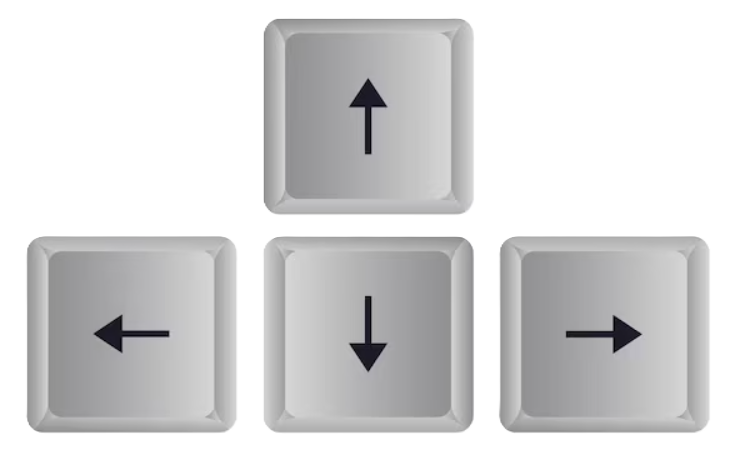
- works on selected images
- when no selection is active, Griphus uses the hovered image
- Left arrow: rotate selected image(s) by +90 degrees
- Right arrow: rotate selected image(s) by -90 degrees
Rotation- Shift + Left or Right: horizontal flip
- Shift + Up or Down: vertical flip
Flipping- Ctrl + Left: crop visible right edge
- Ctrl + Right: crop visible left edge
- Ctrl + Up: crop visible bottom edge
- Ctrl + Down: crop visible top edge
- Ctrl + Shift + arrow: crop the same edge in larger steps
Cropping- Ctrl + Alt + Left: restore visible left edge
- Ctrl + Alt + Right: restore visible right edge
- Ctrl + Alt + Up: restore visible top edge
- Ctrl + Alt + Down: restore visible bottom edge
Undo cropping
-
Enter (in the command line)
-
Layout modes, plate building, and row/column counts
-
Load-style behavior
- Rows, Columns, Proportional, and Instant plate are all available from the load-style button
- when reorganizing existing images, the current canvas arrangement determines the reorder path
- Instant plate reorganize/load automatically shows numbering overlays
- Rows and Columns use Imgs per line directly; Proportional rebuilds with the current count; Instant plate ignores it
-
Build Plate behavior
- uses the explicit formula from the command line when provided
- otherwise infers a formula from the current canvas arrangement
- when images have been deleted, Griphus tries to preserve the surviving structure of the previous plate formula before falling back to fresh geometry inference
- invalid plate parameters show a popup
- invalid formulas show a popup
- trying to rebuild without a formula or geometry change shows an informational popup
-
Height-constrained plate behavior
- if the solved plate cannot fit the target width without vertical overflow, the canvas preview still builds
- the Build Plate button flashes red briefly in this case
- saving such a plate shows a warning popup
-
Load-style behavior
